
5-minute quickstart
This path works on any website and gets your first browser sensor reporting. If your traffic already runs through Cloudflare, you can install the edge sensor instead for broader request coverage.
Start freeCompare install methods-
Create the account and site
Open app.webdecoy.com, create your account, and finish the short workspace prompt. The selected site in the app header is where your first detections will be filed.
-
Copy your install line
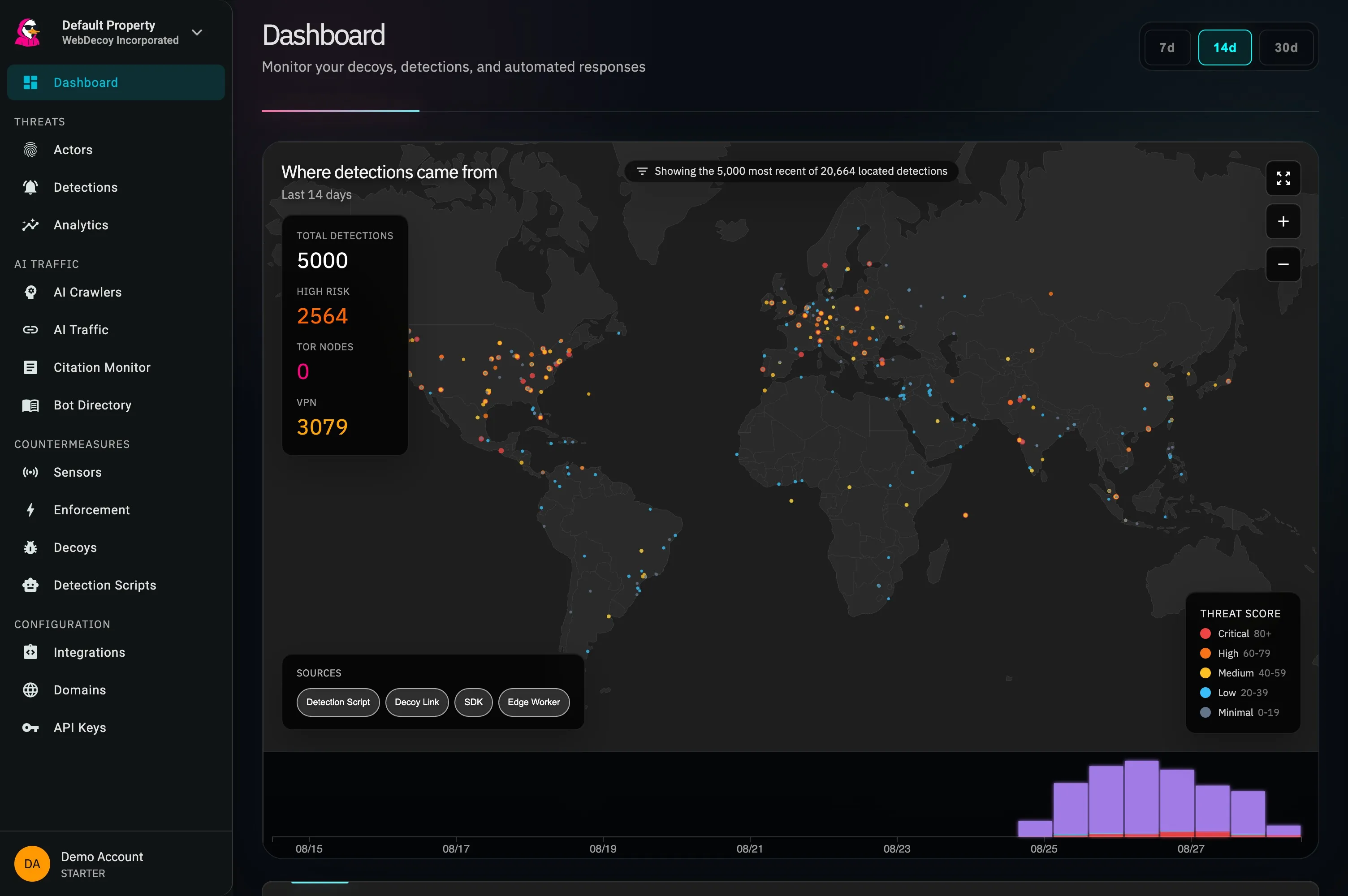
On the dashboard, the setup checklist opens on Install the detection script. It shows the exact line for the selected site with a Copy button.
If you closed the checklist, open Detection Scripts, create a script for the selected site, and choose Copy Snippet.
-
Paste it into your site
Add the copied line just before
</head>in your shared page layout, then deploy. The generated values are unique to your site and script:Your site layout <scriptasyncsrc="https://cdn.webdecoy.com/bot-detection/v1/bot-detection.min.js"data-aid="your-property-uuid"data-sid="your-scanner-uuid"></script> -
Load a page and watch the install verify
Visit one deployed page that contains the tag. The setup checklist waits for the first sensor event and confirms when it arrives. You can also open Sensors:
- Reporting — detections are arriving.
- Nothing reported yet — the source exists, but no event has arrived.
- Quiet — it reported before, but not recently.
-
Send a real test detection
Back on the dashboard, choose Send a test detection (or Trip your decoy now). WebDecoy requests the live example decoy, waits for the real detection to land, and then offers View it.
This proves the ingest and detection pipeline. The sensor status from step 4 separately proves that your page install is present.
What to install next
Section titled “What to install next”- Add the Cloudflare edge sensor or a server SDK to see clients that never execute JavaScript.
- Read Detection coverage before assuming one sensor can see every crawler.
- Open Detections to learn how sources, agents, actors, and scores fit together.
- Start Response actions in monitor mode when you are ready to decide what happens to the next detection.
Need help with a silent source? Follow the install verification checklist.